What the backup preserves
The portable workspace archive preserves locally observed flight/Retail history, submission timelines, activity, local drafts and related draft data, customer-group references, reusable market profiles, and preferences within the selected scope.
Its purpose is continuity: which versions this workspace saw moving through flights and Retail, and when. It cannot recover history that was never recorded or fetch a complete historical archive from Partner Center.
Credentials, tokens, certificates, package binaries and repository indexes, Partner Center response caches, API history, and deleted-item records. Protect package files separately. A backup contains local business/workspace content even without credentials, so treat it as private.
1. Export to disk
- Open Settings > Backup and restore.
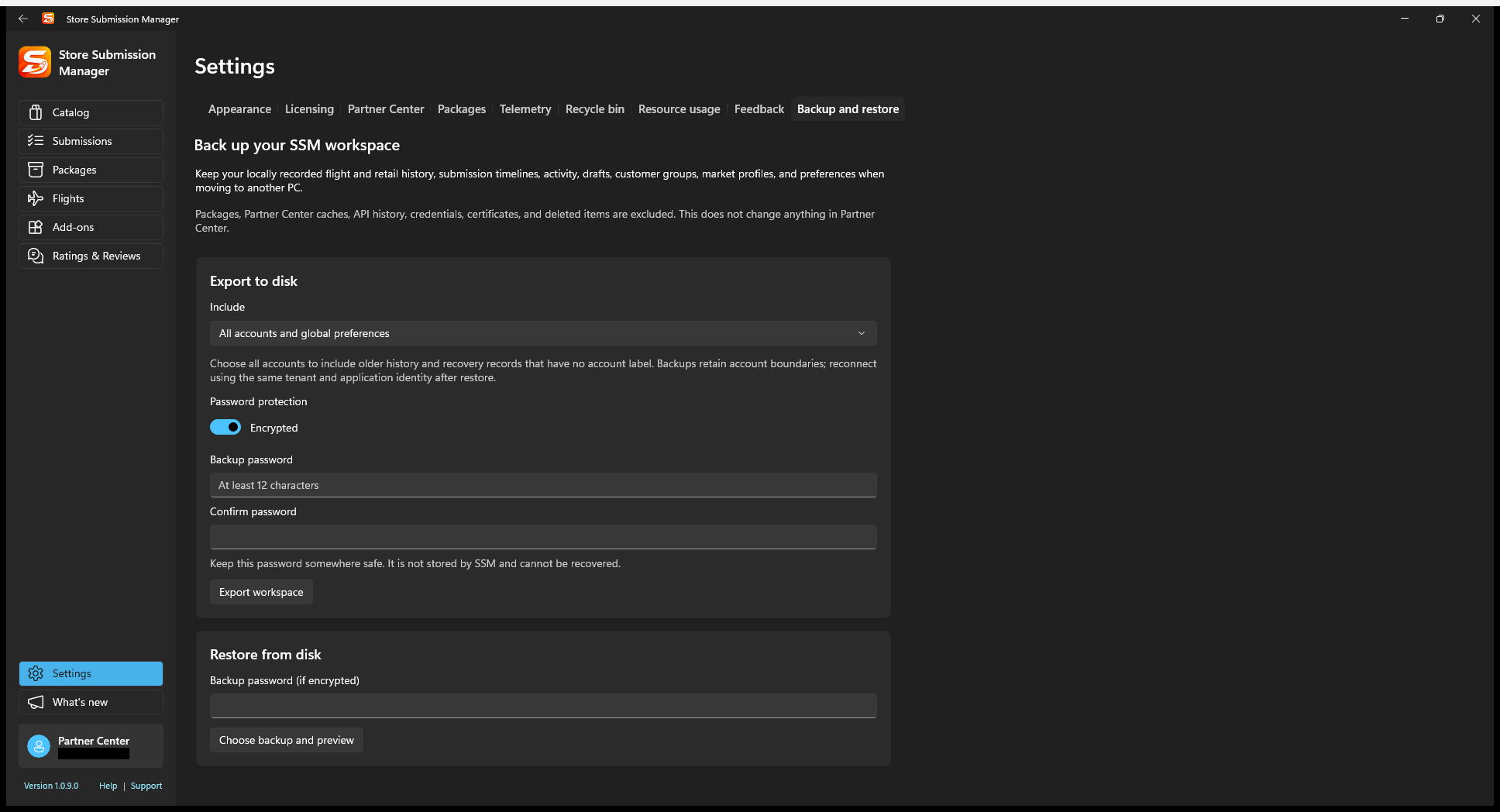
- Under Export to disk, choose the current-account scope or All accounts and global preferences as appropriate. Use all accounts if you need older records that have no account label.
- Prefer password protection. Enter and confirm an encryption password of at least 12 characters. SSM does not retain or recover this password.
- Select Export workspace and choose where to save the
.ssmbackupfile. - Wait for completion and keep the archive and password safely, separately from one another.
A plain, unencrypted archive is available when password protection is disabled. It is not a safe format for public sharing. Exporting does not change Partner Center.
2. Preview and schedule a restore
- On the destination PC, use a compatible SSM build. Consider exporting the destination workspace first so you have a separate rollback copy.
- Open Settings > Backup and restore. Enter the password if the archive is encrypted.
- Choose Choose backup and preview and select the archive. SSM validates it before presenting its contents.
- Read the account/data summary and conflict choices. Choose Keep local or Use backup for conflicting non-history records as appropriate.
- Confirm the restore only after reviewing its scope. It is applied on the next app launch, not immediately while the workspace is open.
- Close and reopen SSM, then inspect the restore result before continuing normal work.
How merging works
History is always merged and deduplicated to preserve continuity rather than replacing one device's timeline with another. The practical conflict choices apply to other conflicting records; this is not a field-by-field merge editor for two independently edited submission drafts.
Account boundaries remain intact. Reconnect using the same tenant and application identity used for the archived account data. Restoring credentials is intentionally not part of this flow.
Expected result: after restart, the selected local workspace data is available and histories are combined. This does not upload drafts, create customer-group membership, submit packages, or roll back Partner Center.
After restoring, verify before editing
Check the flight timeline, submission history, customer-group references, preferences, and any restored draft. Refresh current Partner Center state before saving an older draft so stale local work is not mistaken for the latest server version.
Reconnect or separately copy the package repository. Missing binaries cannot be reconstructed from the workspace archive. If restore validation/recovery reports a problem, retain the original archive, read the error, and do not reset local data as a first response.
This iteration is manual export/import from disk. It does not perform automatic scheduled backups or cloud upload/download.