1. Import existing packages
- Open Packages and check the repository location and availability.
- Select Add packages and choose the compatible MSIX/AppX, bundle, or upload files you want to retain.
- Select an imported item and inspect its identity, version, architectures, compatibility, and associated product.
- If the package is not associated with a loaded product, check the account/managed-product selection and resolve the association before trying to open or promote it.
Importing is local storage, not publication. It does not create a Store product, start a submission, or upload the binary to Partner Center.
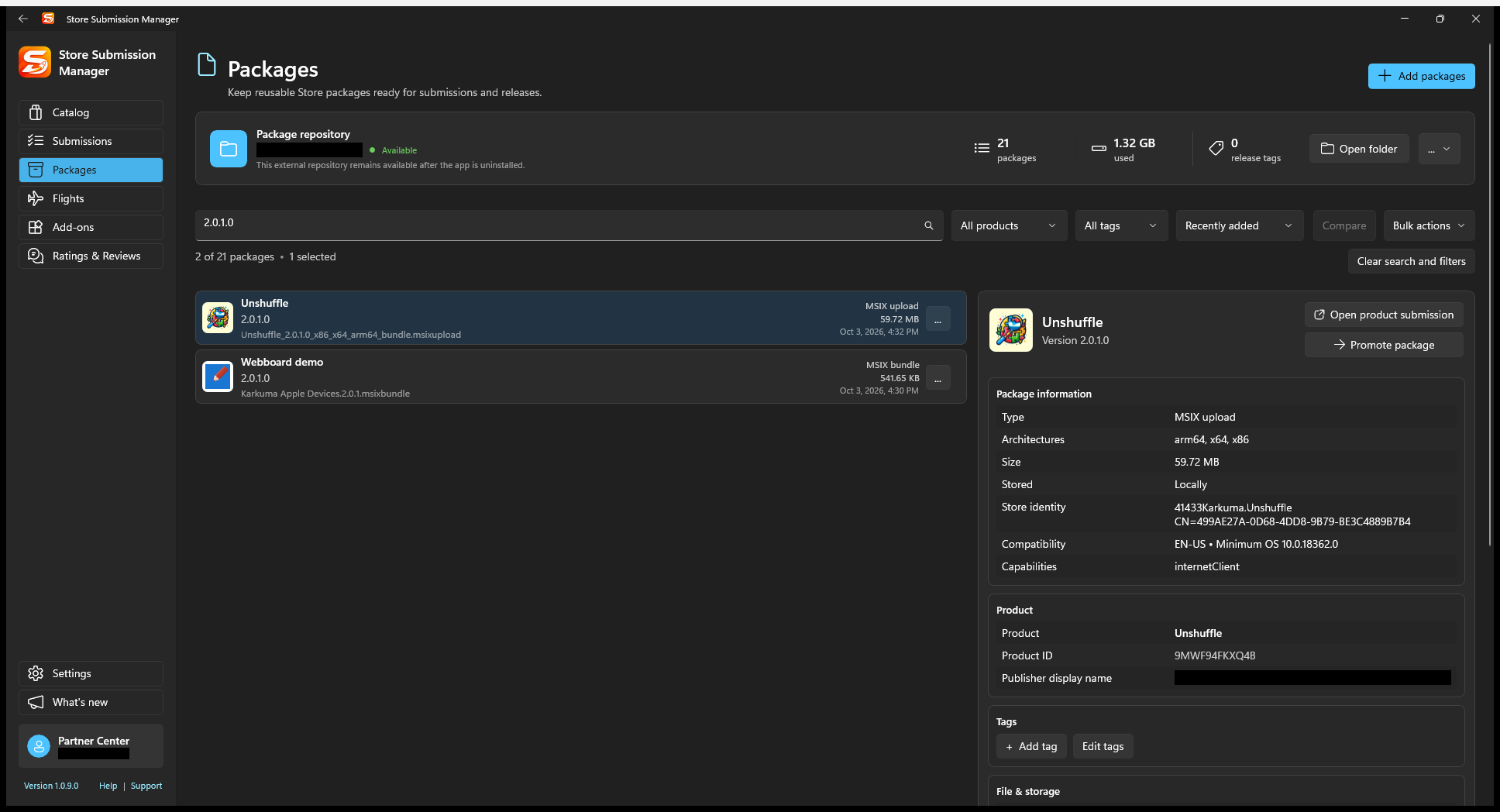
2. Find, tag, compare, and inspect usage
Search by product, filename, version, or tag. Use product/tag filters and sorting to narrow the list. Add meaningful release tags so a tested candidate is easy to find later.
Select packages and use Compare when available to inspect differences. Open package details and usage/history to see the locally tracked submissions and destinations associated with a binary.
History is what this workspace has recorded, not a promise that Partner Center can return every past release. Keeping both the repository and workspace history gives the most useful release trail.
3. Reuse a package in a draft or promotion
From an app or flight package editor, use Add from repository or Replace packages > From repository. Confirm the complete resulting package set, then save and submit through that draft's workflow.
Alternatively select Promote package from package details to prepare eligible flight/Retail destinations. Read the promotion guide before committing.
Expected result: a known local binary is selected for a submission without having to find it in your build output again. Selecting it still does not publish it.
4. Choose storage and protect the binaries
Use Settings > Packages to Choose folder or Use app-local storage. SSM copies and verifies data when relocating the repository. Account-specific repository data remains isolated.
An external repository can remain available after uninstall. After reinstall or on another PC, reconnect the same repository parent folder and the correct account. Do not assume that choosing an empty folder reconstructs binaries from Store history.
Workspace .ssmbackup archives intentionally exclude binaries and repository indexes. Protect the external repository separately if you want to keep the ability to promote old releases.
Delete repository and package-removal actions remove local data; they do not remove an already published Store release. They can still prevent future reuse/promotion, so review usage and retain a separate copy first.