Before you start
Choose the correct parent app and a developer-defined product ID. Decide whether the product is Durable or Consumable; identity and type should be chosen carefully. Subscription-type add-ons are not supported by this editor.
Have localized titles/descriptions, a 300 × 300 PNG icon, pricing, and publication decisions ready. Creating the Store add-on does not implement purchasing or entitlement handling inside your app.
1. Create the product and initial draft
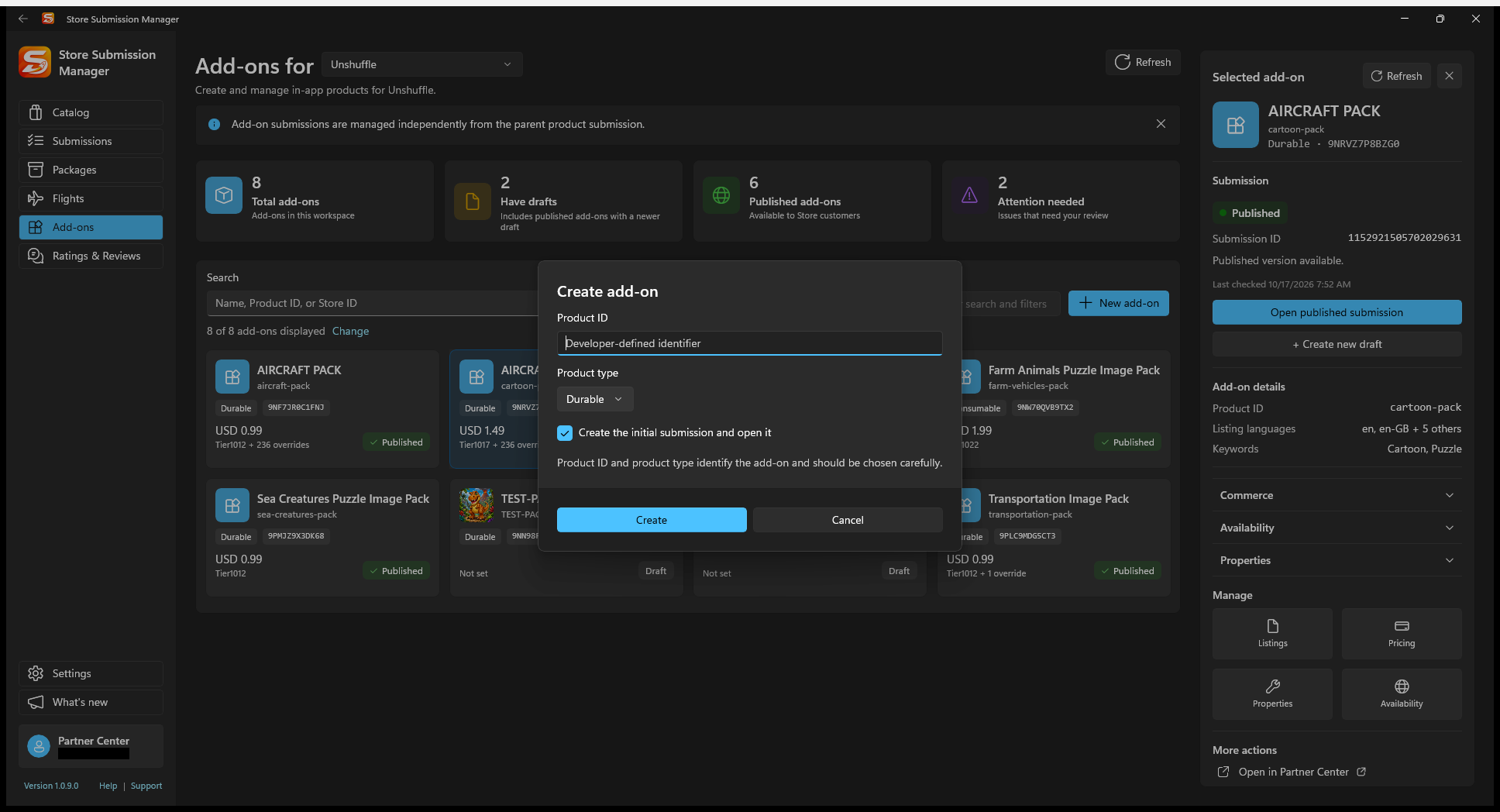
- Open Add-ons and select the parent product in the title-area selector.
- Select New add-on (shown as Add add-on in some builds).
- Enter the Product ID and choose Product type.
- Leave Create the initial submission and open it selected if you want to start editing immediately.
- Select Create. This creates a real Partner Center resource; closing the dialog beforehand does not.
2. Fill properties, listings, and pricing
- Review properties such as content type, lifetime where applicable, visibility, developer tag, and keywords.
- Add each required listing language. Enter its title and description, use Choose 300×300 PNG for the icon, and select Save listing.
- Choose a base price tier and review market overrides in the pricing editor. Do not overwrite an unfamiliar pricing structure without understanding it.
- Review publication settings. If you choose manual publication, plan to release it from Partner Center after certification. Prefer a straightforward release mode over a future-dated schedule unless you have verified the intended behavior.
- Select Save to Partner Center to persist the draft.
3. Complete privacy-policy properties before submitting
The add-on privacy-policy setting is not exposed by the API used by SSM. Use the editor's Open properties link to open the relevant Partner Center properties page, complete the setting, and return to acknowledge that it has been checked for this submission.
The parent app must be published before the add-on can be submitted. You can prepare draft content earlier, but that does not remove the publication requirement.
- Verify privacy-policy properties and acknowledge the submission-specific confirmation in SSM.
- Review the saved listing, icon, price, markets, and release mode.
- Select Submit only when ready. Refresh the add-on status to follow Store processing.
Expected result: the add-on submission enters processing independently of the parent app submission. A saved draft is not a purchasable published add-on.
If creation or submission is blocked
Check for a duplicate product ID, the correct parent product, API permissions, parent publication, and the privacy-policy confirmation. If creation succeeded but opening the draft failed, refresh the add-on list before trying Create again.
For subscription products or unsupported settings, use Partner Center rather than forcing a different product type.