1. Find the correct add-on
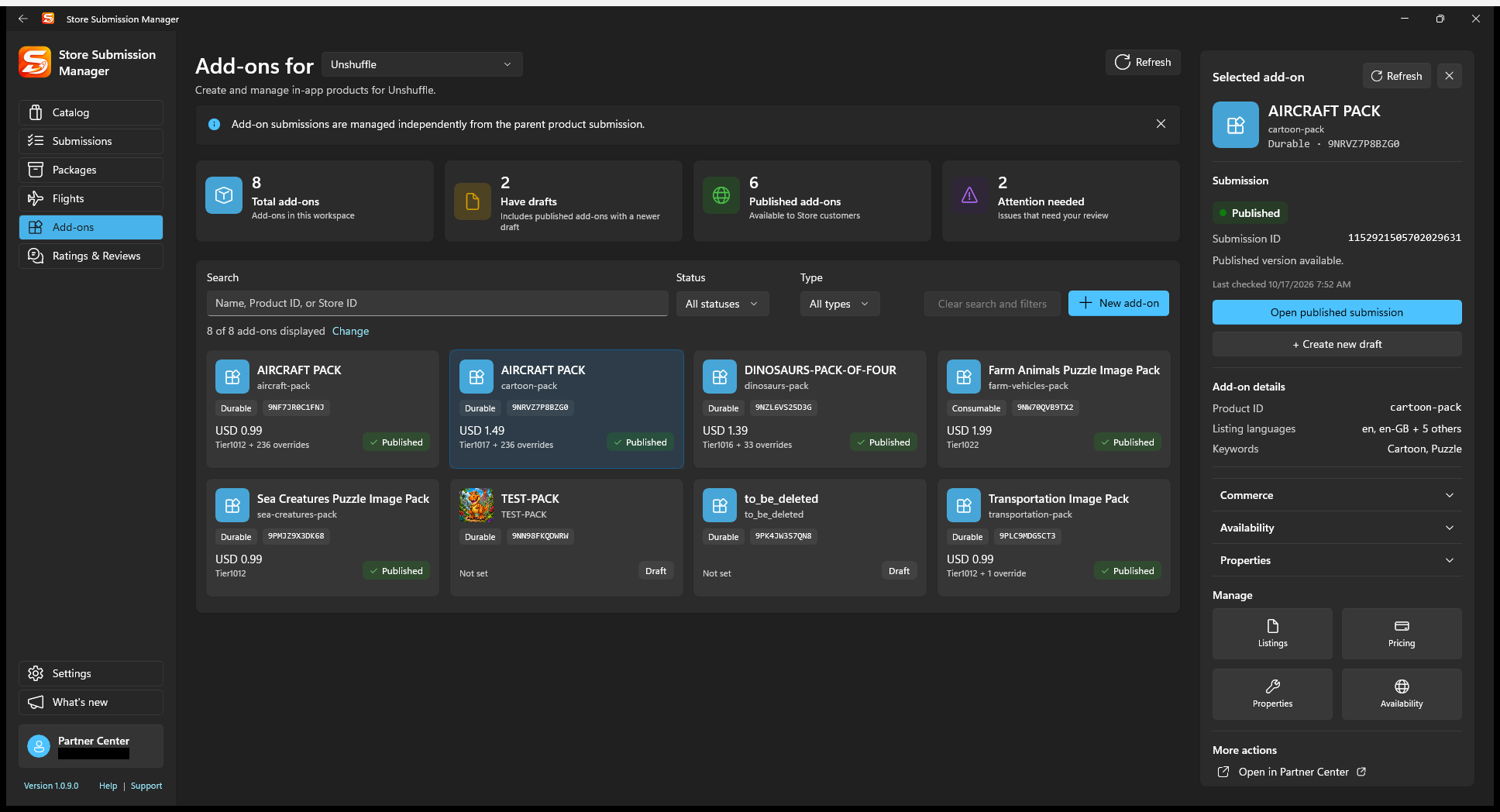
- Open Add-ons and choose its parent app or game.
- Search by name, product ID, or Store ID; narrow by status or type if useful.
- Select the add-on and refresh its details. Check whether there is a published submission, an existing draft, or a submission in processing.
- Open the existing draft when available. Otherwise choose + Create new draft / Create draft. Do not create a second add-on to make a content update.
2. Edit and compare the draft
Use the focused editors to update the affected Listings, Pricing, Properties, or Availability. Product ID and product type identify the existing product; an update is not a way to change its identity.
- For listing updates, select the language, edit the title/description or replace its icon, and use Save listing.
- For pricing changes, review both the base tier and market overrides; retain unfamiliar server settings unless you intentionally replace them.
- Use Compare with published to inspect the complete update, including localized content and commercial changes.
- Choose Save to Partner Center and wait for success before proceeding.
Pro adds listing import/export and selected bulk listing operations. It does not remove the need to review each locale or validate the saved submission.
3. Check Partner Center properties and submit
Use Open properties in the draft editor to visit the relevant Partner Center properties page. The API cannot set this privacy-policy field; SSM's acknowledgment is tied to the current submission, not a permanent account-wide waiver.
Confirm the parent app is published, review the release mode, then select Submit. Refresh status until you understand the outcome. For manual publication, complete the release in Partner Center after certification.
Expected result: a new submission for the same add-on enters processing; the existing published submission remains your comparison baseline until the update is released.
Recover without losing useful work
Start clean draft and Delete draft are destructive draft operations, not refresh buttons. Preserve current content before using them. If a save/submit call fails, refresh to discover whether the service already applied it before repeating the operation.
An in-progress submission or unsupported add-on type can make editing unavailable. Follow the displayed explanation or use Partner Center rather than assuming the add-on is missing.