1. Choose an app
Open Ratings & Reviews from the navigation rail and choose your app in the title-area selector. For live data, use a product with a published Retail submission and the necessary account/API access.
In the development build used for this walkthrough, enabling Demo data substitutes Demo app (synthetic). You do not need a demo switch to use the same viewing/filtering tools with your own published product.
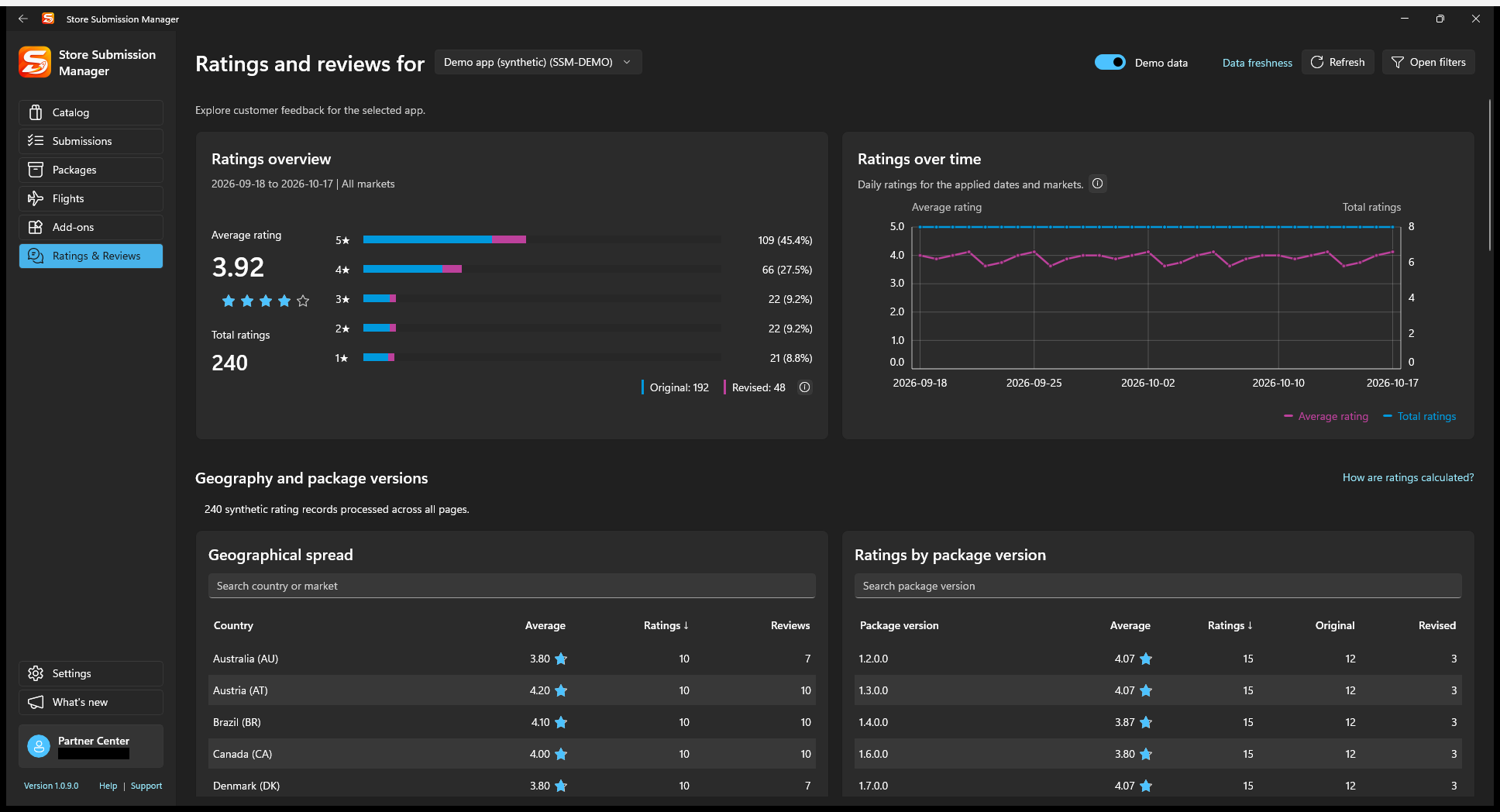
2. Set the period and markets, then Apply
- Select Open filters. The button changes to Close filters while the sidebar is open.
- Expand Date. Choose Lifetime, the last 1, 3, 6, or 12 months, or Custom dates. Lifetime requests the available API history; it does not guarantee complete lifetime records.
- Expand Market and choose the countries/markets you want to analyze.
- Use Review, Device, and Package version to refine the written-review list when needed.
- Select Apply. Changes in the sidebar are pending until you apply them.
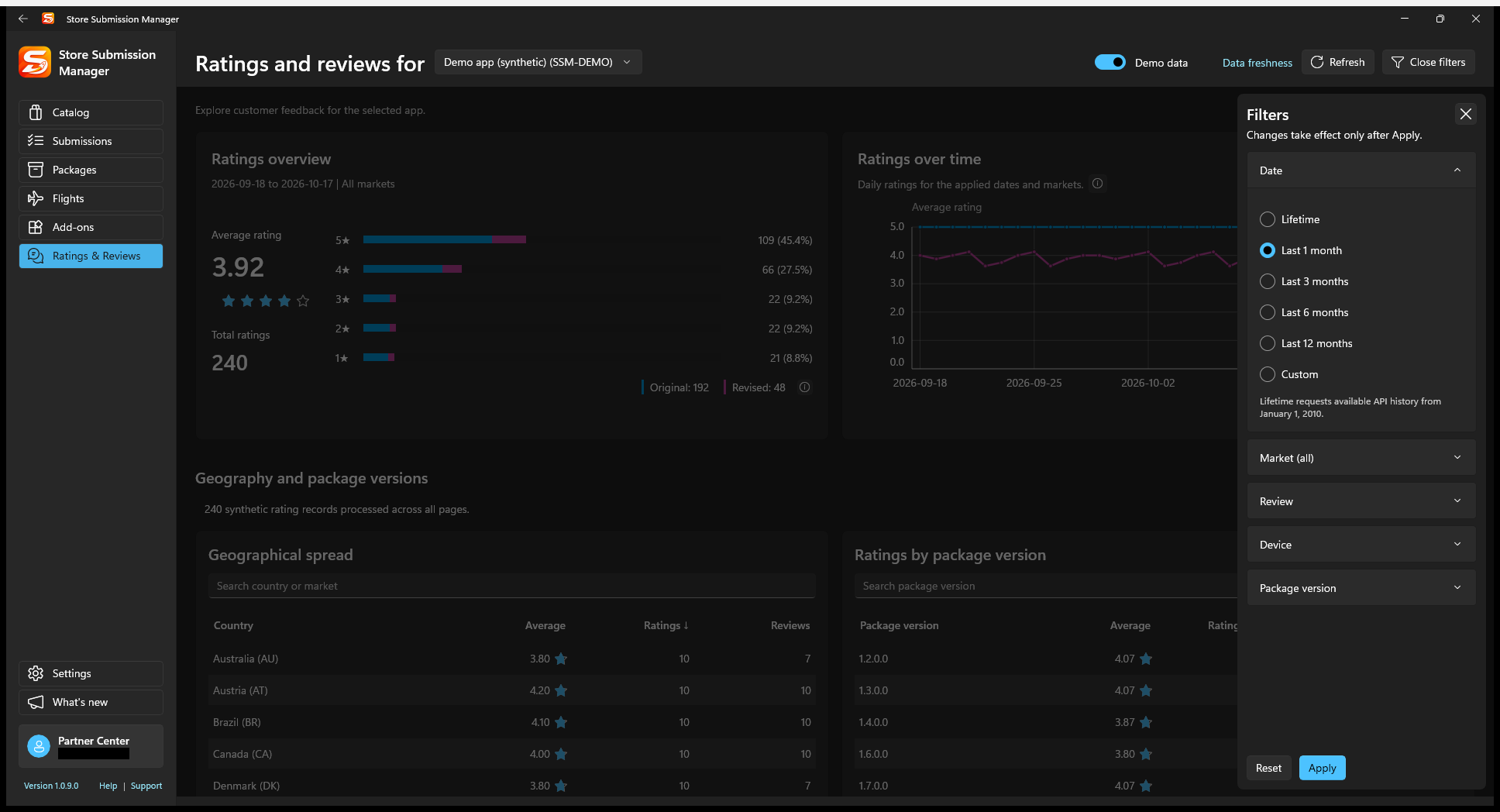
Applied dates and markets affect the ratings aggregates. Review-specific filters, rating selection, and text search refine review browsing; they do not redefine the ratings overview. Check the scope shown on each section before comparing numbers.
3. Read the charts and breakdowns
Ratings overview shows the average, total rating count, and star distribution. Select the Original and Revised legend items to toggle their bar segments.
Ratings over time combines the average rating and rating count with separately labeled axes. Hold Ctrl while scrolling over the chart to zoom horizontally; choose Reset zoom to restore the full date range.
Geographical spread and Ratings by package version load automatically. Larger ranges may take longer while SSM processes the rating records. Search or sort these tables; each page shows up to 10 rows.
A rating is not necessarily a written review, and revised records have their own meaning. Use How are ratings calculated? and the chart information icons for the calculation context instead of expecting review-card counts to equal all rating counts.
4. Browse and inspect written reviews
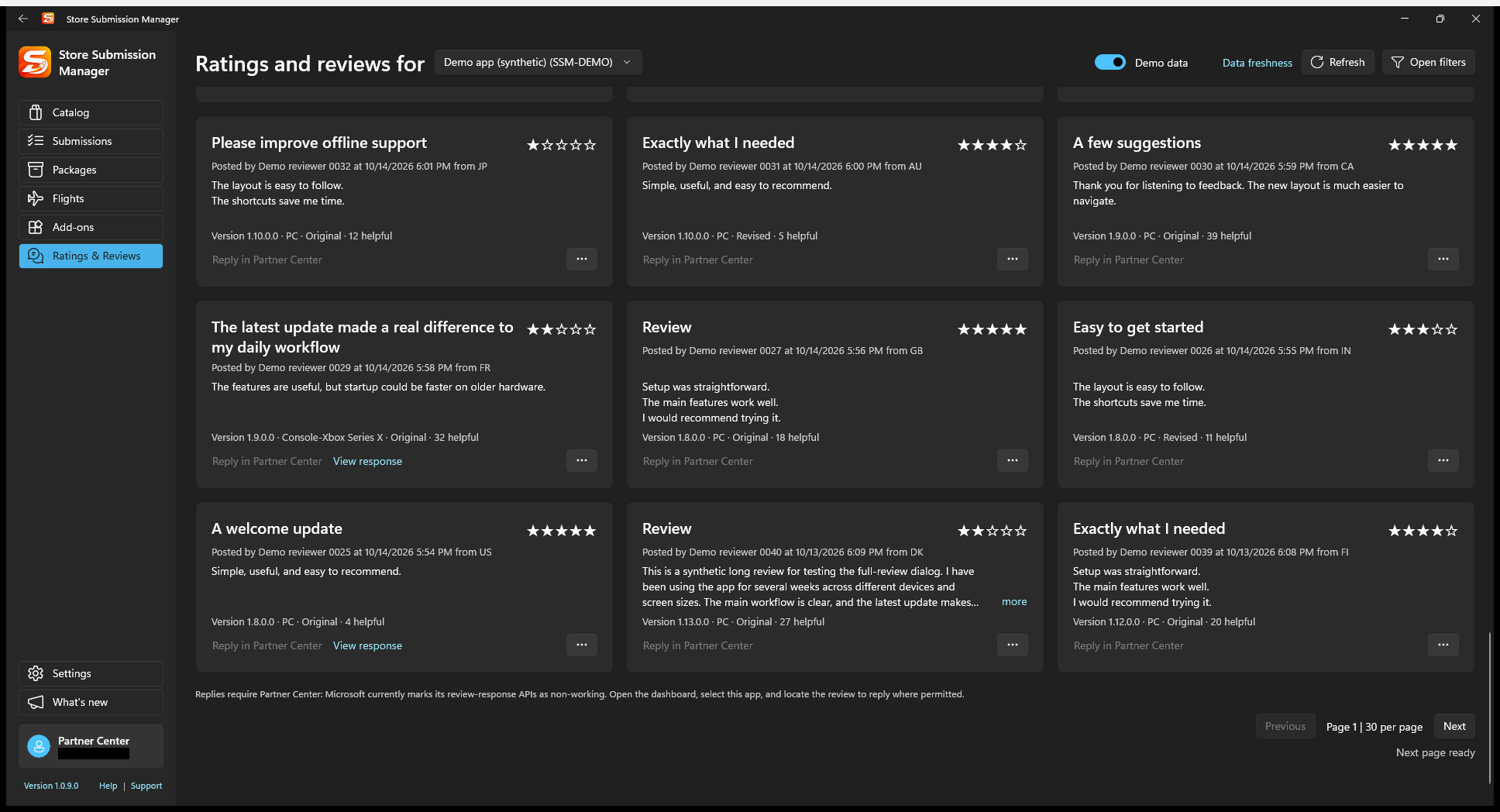
Use Search reviews and submit the search with Enter or its search icon. Choose a star rating and sort order as needed. The responsive cards show title, stars, reviewer/time/market, text, package version, device, and original/revised context.
Use more for long text and View response when a response exists. Reviews show up to 30 per page. SSM prefetches the next page when possible; Next page ready indicates the work is already prepared.
Understand freshness and empty results
SSM caches non-mutating review data in encrypted, account-partitioned local storage for up to one hour when caching is enabled. Data freshness explains the current source/time. Use Refresh to bypass the local API cache; upstream reporting delays can still remain.
If there is no data, check the selected app, Retail publication, date range, markets, review-only filters, and API access. A review list can be empty even when ratings exist. You can disable API caching in Settings when troubleshooting.