1. Check status and open the flight
- Open Flights and select the app.
- Select the intended flight and use Refresh. Confirm its audience, rank, current version, status, and any active rollout.
- Choose View flight. Open an existing editable draft, or choose Submit new package to begin a new submission when allowed.
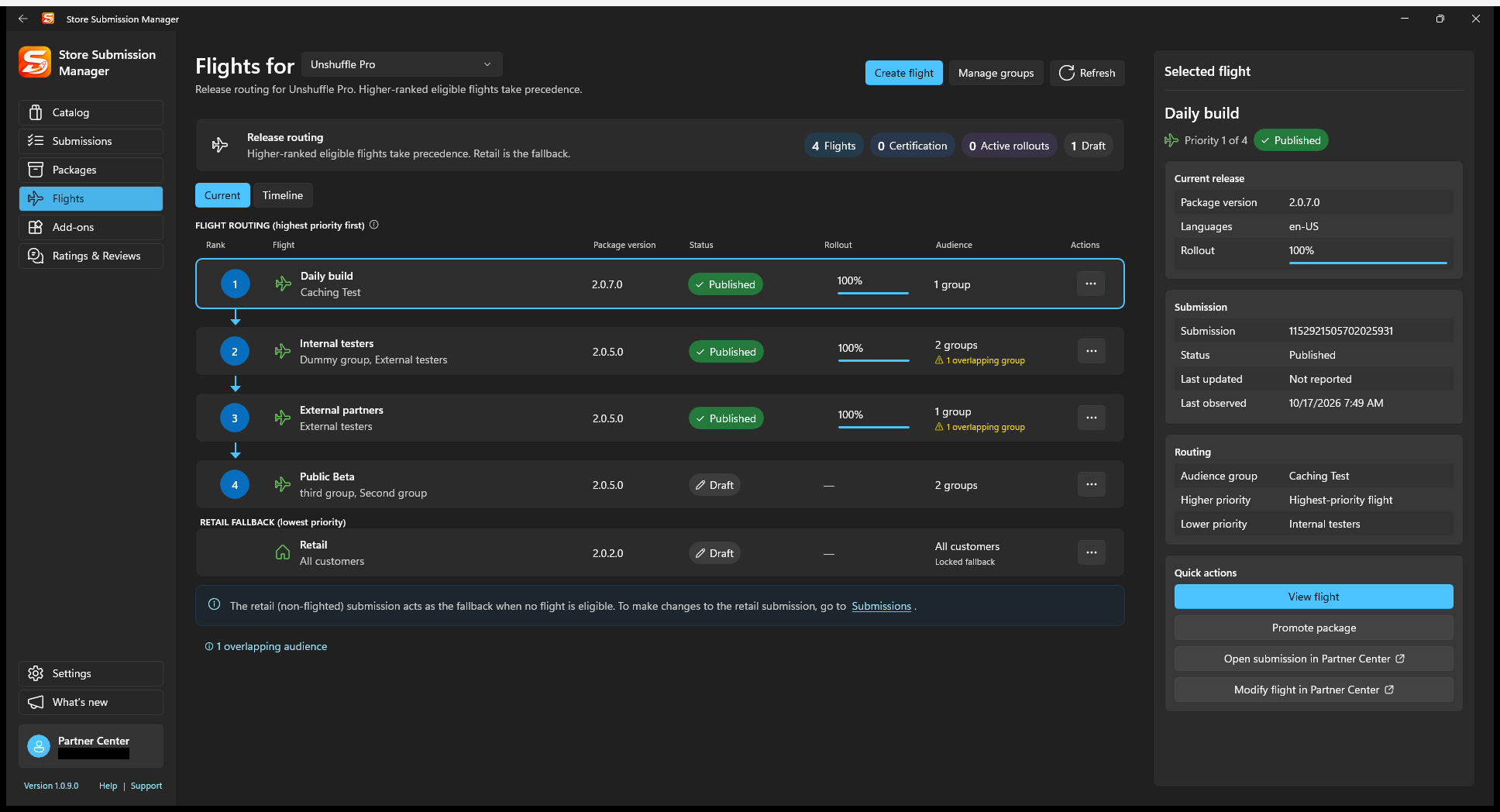
If a submission is already processing, or a rollout prevents another update, follow the displayed explanation. Do not recreate the flight just to bypass its status.
2. Replace packages and review release settings
- Open Packages and add/replace from your computer or repository.
- Verify product identity and a suitable newer version. Review all included architectures and packages rather than assuming that adding one file replaces every older file.
- Review Release settings, publication mode, and gradual rollout if used.
- Select Save to Partner Center and wait for upload/save completion.
The current editor does not change audience or priority on an already created flight. Those attributes are not part of replacing its package.
3. Submit and follow the outcome
- Review the saved draft and choose Submit to start Store processing.
- Refresh status and inspect any failure details before attempting another update.
- For a manual release, finish the release in Partner Center after certification. For a gradual rollout, monitor and use the offered halt/finalize actions only when appropriate.
- Return to Flights to verify the published version and rollout. Test with an account eligible for that flight.
Expected result: the flight's new package is processed and released according to the chosen settings. The separate Retail submission is not automatically updated.
Keep the package and its history
Retain the submitted binary in the package repository. Once testing succeeds, use Promote package to reuse that binary for another flight or Retail.
SSM's timeline records what this workspace has observed; it is not a complete historical archive fetched from Partner Center. The backup/restore preview is intended to preserve that local continuity.
Recreate draft is a recovery action that may discard work. Preserve changes and read the confirmation before using it.